Get Found Playbook · Part 5
Let's show people what you sell.
Customers comparison-shop before they call. If they can't see what you offer and roughly what it costs, they pick the business that shows them.
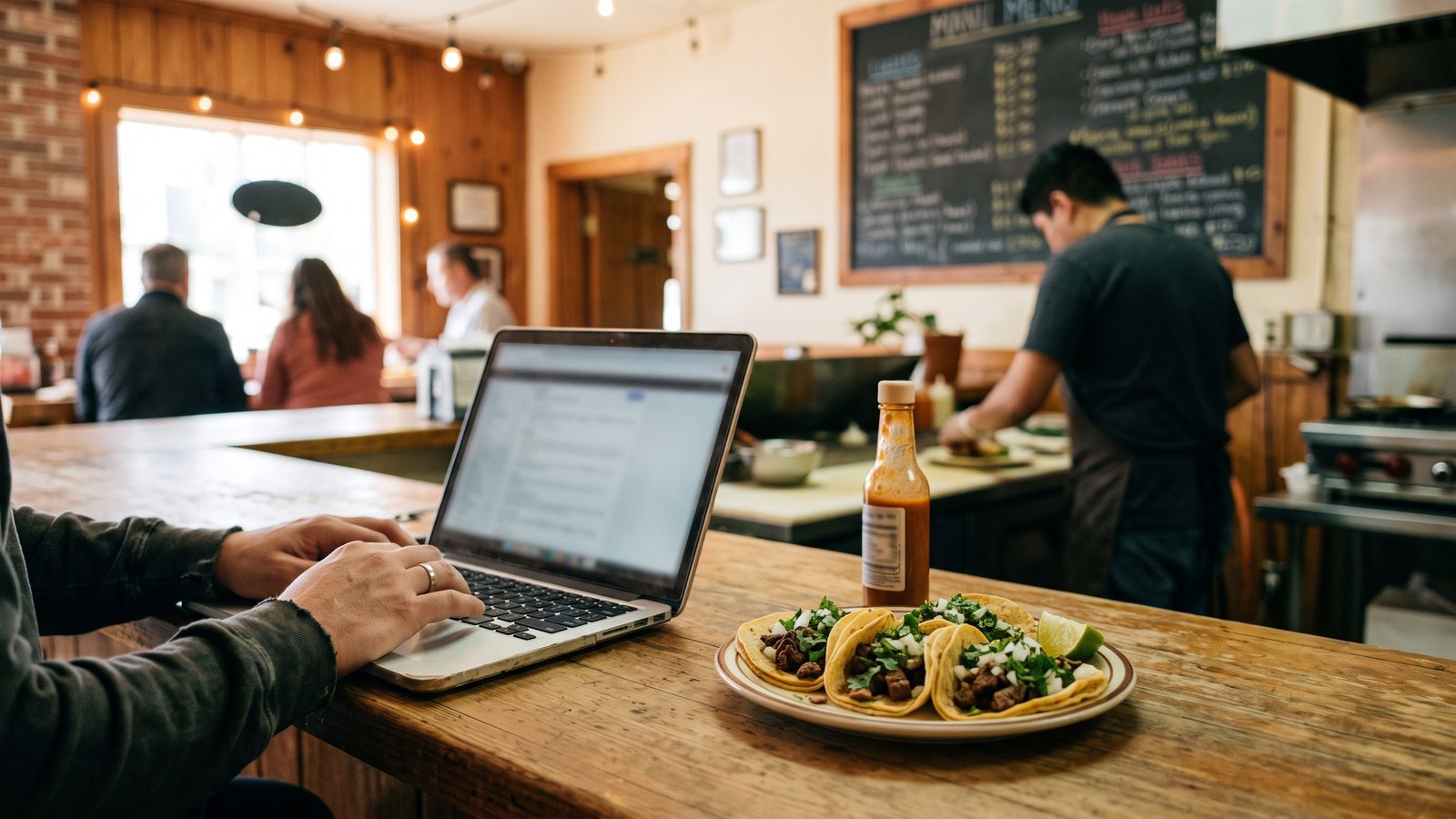
- Google has a Services section (Menu for food). Most businesses leave it empty.
- Real text is searchable text. A photo of your price board is invisible to search.
- List your top five with a price or "from $X." Put the same list on your website.
Don't want to read? Let an AI walk you through it.
Tap the button, then paste it into ChatGPT, Claude, or Gemini. It becomes your coach for this one fix.
You're a patient, friendly coach helping a small business owner fill in the Services or Menu section on their Google Business Profile. Talk to me like I'm brand new to this. Give me one short step at a time, and wait for me to say "done" before the next one.
First, ask me two questions and wait for my answers: (1) What kind of business do I have, and what are the five things I sell most? (2) Am I on my phone or on a computer right now?
Then walk me through it. Step 1: ask me a rough price for each of those five, and write each as a plain one-line description with a price or "from $X." Step 2: on a phone, open the Google Maps app, tap my profile picture, tap Your Business Profile, then tap Edit services (or Menu, then Add menu items, if I sell food). On a computer, search my business name on Google and click Edit services or Menu in the "Your business on Google" panel. Step 3: help me add the rest of what I sell, even the obvious things. Step 4: expert tips: use the words a customer would type, like "brake job" or "barbacoa plate," not shop slang, and never a photo of my price board in place of typed text. Step 5: remind me to mirror the same list on my website as real text, not a photo or PDF, and set me a first-Monday-of-the-month price check.
Ground rule: only advice that follows Google's rules for Business Profiles. Only things I actually sell, at today's real prices. No keyword stuffing, no made-up services.
What the Menu or Services section is
Your Google listing has a section most owners never open. If you sell
food, Google calls it Menu. For everyone else, it's
Services. It's a typed list of what you sell, with prices if you
want them. Google can read typed text. So when
someone in your area searches "barbacoa plate near me"
or "brake job near me," a listing with those words typed in can show up. A
photo of your price board can't. To search, that photo is a blank wall. Do
this first: open your listing and look at that section.
Why it matters to the person deciding
Customers comparison-shop before they call. They open two or three listings and look for what you sell and about what it costs. If yours says nothing, they don't call to ask. They tap the one that shows them. "Haircuts from $15" beats silence every time. Price-shy listings lose the customers who were ready to buy. Decide now: you don't need exact prices, but you need a starting number for your top items.
How to add your services or menu, Google's way
- On your phone. Open the Google Maps app, tap your profile picture
in the top corner, then tap
Your Business Profile. TapEdit services. If you sell food, tapMenu, thenAdd menu items. - On a computer. Search your business name on Google. In the box
that says "Your business on Google," click
Edit services, orMenufor food. - Add each service or dish. One line each: the name, a short plain description, and a price or "from $X." "Oil change, most cars, from $45." "Barbacoa plate, with rice, beans, and tortillas, $12."
- Lead with your top five. The five things you sell most go first. That's all most people read. Then add the rest, even the obvious ones.
- Save and check it. Look up your business on Google Maps like a customer would. Your list shows right on your listing.
Put the same list on your website
If you have a website, the same list goes there too, as real typed text. Not a photo of the menu. Not a PDF. Text you can highlight with your finger. Google reads that text the same way it reads your listing. Copy the list straight from your listing onto your site. More on that in Part 6.
Keep the prices honest
Update the list when prices change. A wrong price online costs more goodwill than no price. A customer who drives over for the $45 oil change and hears $65 at the counter is not coming back, and they may say so in a review (see Part 3). If a price moves a lot, use "from $X" and let the exact number happen in person.
Can customers see what you sell?
Run the free 60-second checkup. It checks whether customers can see your menu or services online. Your EDC coaches local businesses through the fixes, free.
Run my free checkup